

Adspirer is now an official ChatGPT app. No developer mode, custom connectors, or server URLs to paste — just search for Adspirer in ChatGPT → Apps, click Connect, and sign in. Setup takes under a minute.
Prerequisites
- A ChatGPT Plus, Pro, Business, or Enterprise account (Apps are not available on the free tier)
- An Adspirer account (free to start) — you can also create one during the connect step
- At least one ad platform account: Google Ads, Meta Ads, LinkedIn Ads, or TikTok Ads
Setup (1 Minute)
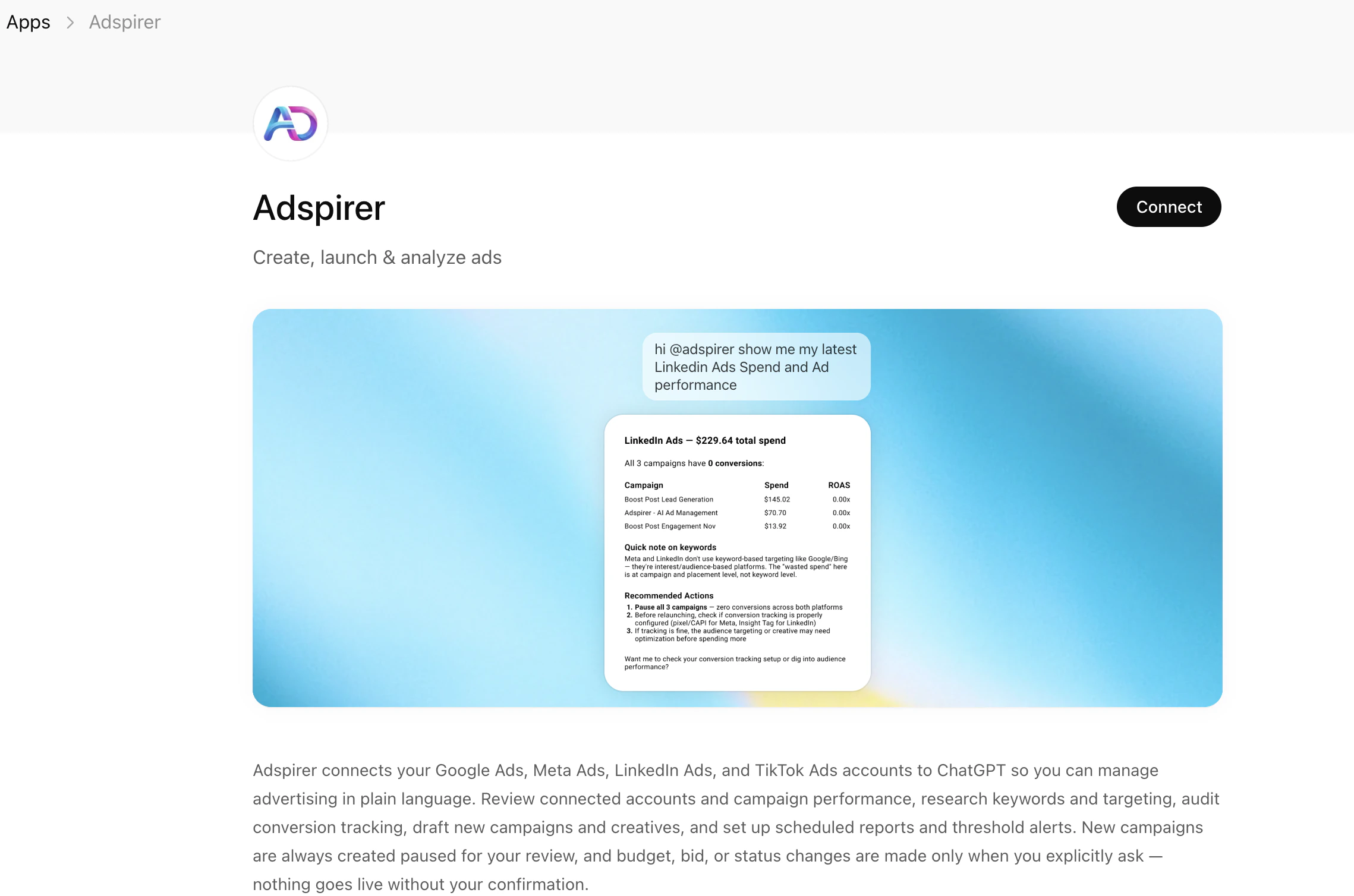
Open Apps and search for Adspirer
In ChatGPT, open Apps from the left sidebar (or Settings → Apps). In the search box, type Adspirer and select it from the results.
Sign in with Adspirer
The Add Adspirer to ChatGPT dialog appears. Click Sign in with Adspirer to authenticate. Your browser opens and redirects to Adspirer’s login page — sign in (or create an account) and link your Google Ads, Meta Ads, LinkedIn Ads, and/or TikTok accounts.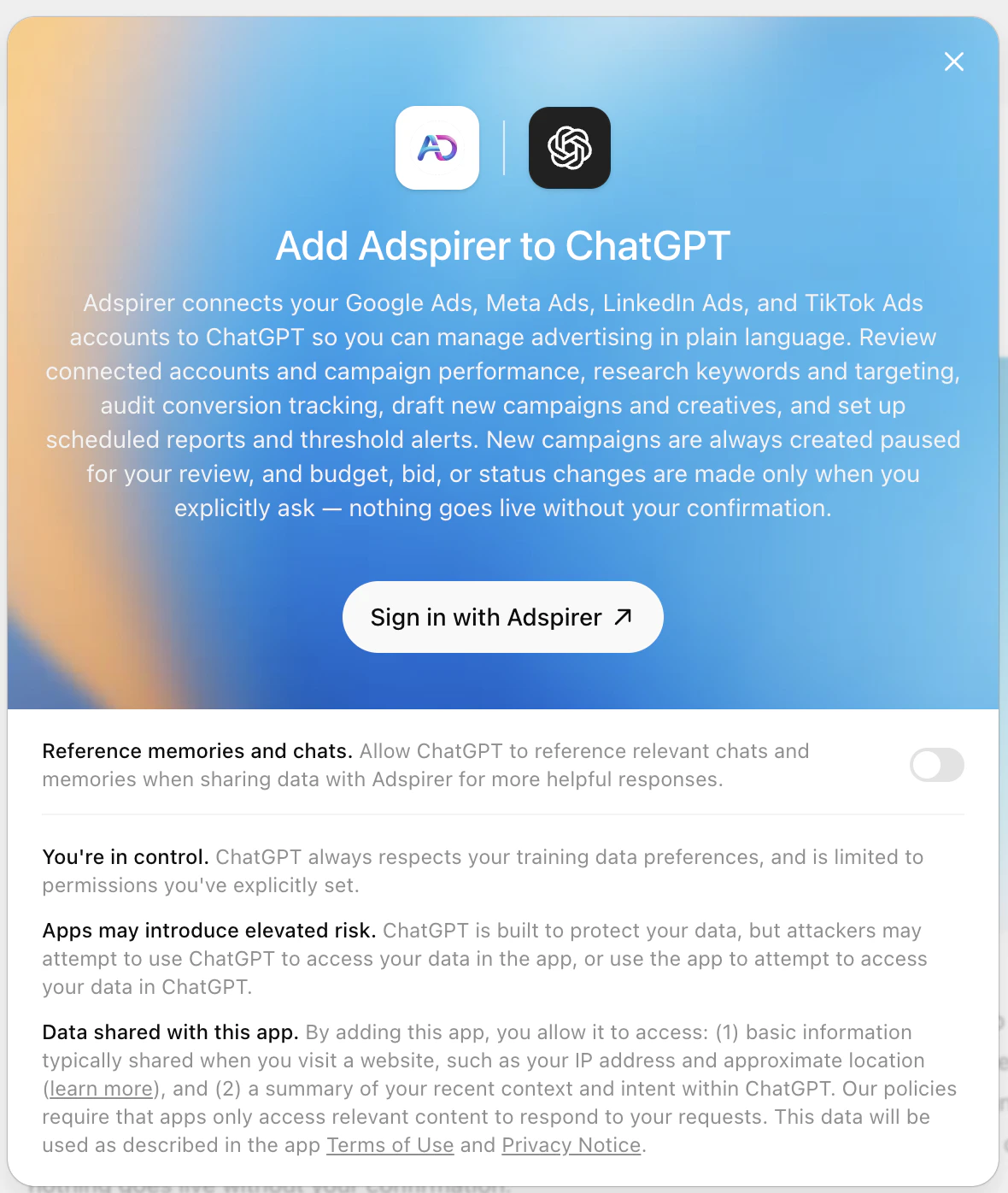
The dialog includes a “Reference memories and chats” toggle. Enabling it lets ChatGPT use your past conversations and memories when working with Adspirer for more helpful responses. Leave it on (recommended) or off based on your preference.
Start Managing Ads
Return to ChatGPT and start a new conversation. Mention @adspirer (or just ask about your campaigns) and ChatGPT will call Adspirer’s tools.You should see a table showing your connected accounts across all platforms with account IDs, names, and connection status.
You’re connected. Start any new ChatGPT conversation, mention @adspirer, and all 340+ tools are available.
Connection Details
ChatGPT manages the connection for you through the official app — there’s no URL to paste. For reference (or to connect a different MCP client), Adspirer’s server details are:What You Can Do
340+ tools across 6 ad platforms:| Platform | Tools | Key Capabilities |
|---|---|---|
| Google Ads | 95 | Keyword research with real CPC data, Search & PMax campaigns, per-ad performance, wasted spend analysis, budget optimization |
| Meta Ads | 37 | Image/video/carousel campaigns, audience targeting, creative fatigue detection, EU DSA support |
| Amazon Ads | 61 | Sponsored Products / Brands / Display, ASIN targeting, ACOS/ROAS analytics, wasted-spend detection |
| ChatGPT Ads | 31 | Launch & manage pay-per-click chat-card ads inside ChatGPT, paused by default |
| LinkedIn Ads | 45 | Sponsored content, lead gen forms, B2B targeting by job title, industry, seniority |
| TikTok Ads | 37 | In-feed video, Spark Ads, Carousel, asset validation, performance analysis |
Example Prompts
Research Keywords
Keyword research with real CPC data from Google Keyword Planner.
Create a Campaign
Google Search campaign with keyword research and intent grouping.
Audit Performance
Wasted spend audit for zero-conversion keywords.
FAQ
Do I still need Developer Mode or a custom connector?
Do I still need Developer Mode or a custom connector?
No. Adspirer is now an official ChatGPT app, so you no longer need to enable Developer mode, accept an “elevated risk” warning, or paste a server URL. Just search for Adspirer in Apps, click Connect, and sign in. If you previously added Adspirer as a custom connector in Developer mode, you can remove it and reconnect through the App Store — your Adspirer account and ad platform connections carry over.
What are ChatGPT apps?
What are ChatGPT apps?
ChatGPT apps let ChatGPT securely connect to external services. They use the Model Context Protocol (MCP) — the same open standard used by Claude. The Adspirer app enables advertising management across Google Ads, Meta Ads, LinkedIn Ads, and TikTok. If you’re weighing apps against a Custom GPT, see ChatGPT Apps vs Custom GPTs for Advertising.
Which ChatGPT plans support apps?
Which ChatGPT plans support apps?
Apps are available on Plus and Pro plans for individual users. Business and Enterprise plans also support apps with additional admin controls. The free ChatGPT tier does not include app functionality.
How is ChatGPT different from Claude for ads?
How is ChatGPT different from Claude for ads?
Both use the same Adspirer MCP server, so functionality is identical. However, ChatGPT may be more conservative in automatically calling tools — you might need to explicitly mention which tool to use. Claude (created by Anthropic, who also created MCP) tends to invoke tools more naturally and supports progress streaming.
Can I use Adspirer with both ChatGPT and Claude?
Can I use Adspirer with both ChatGPT and Claude?
Yes. Your Adspirer account works across all platforms. Connect the same MCP URL to ChatGPT, Claude, Perplexity, Claude Code, Cursor, or any MCP-compatible client. Your ad account connections carry across all of them.
How much does this cost?
How much does this cost?
Adspirer pricing is based on tool calls, not ad spend. Free tier: 15 calls/month. Plus: 99/mo for 600 calls. Max: $199/mo for 3,000 calls. See full pricing.
Tools aren't working or I see connection errors. What do I do?
Tools aren't working or I see connection errors. What do I do?
If no Adspirer tools work at all (even basic ones like checking connections), follow these steps:
- Check tool permissions: When ChatGPT prompts you to allow a tool, make sure read tools are set to Always allow and write tools to Custom (ask each time). If you accidentally blocked tools, go to Settings → Apps, find Adspirer, and reset permissions.
- Reconnect the app: Go to Settings → Apps, find Adspirer, click Disconnect, then reopen the Adspirer app and click Connect again to redo the OAuth flow.
- Refresh your Adspirer session: Go to adspirer.ai, log out, log back in, then return to ChatGPT.
Related Documentation
- Claude Chat App Setup — Claude’s MCP connector with progress streaming
- Perplexity Setup — Search-powered ad management via Perplexity Computer
- Claude Code Setup — Terminal-based setup for developers
- Google Ads Integration — Full Google Ads tool reference
- How to Connect ChatGPT to Google Ads — Step-by-step walkthrough with example prompts
- ChatGPT Apps vs Custom GPTs for Advertising — Which ChatGPT setup is right for managing ad campaigns
- Pricing & Plans